
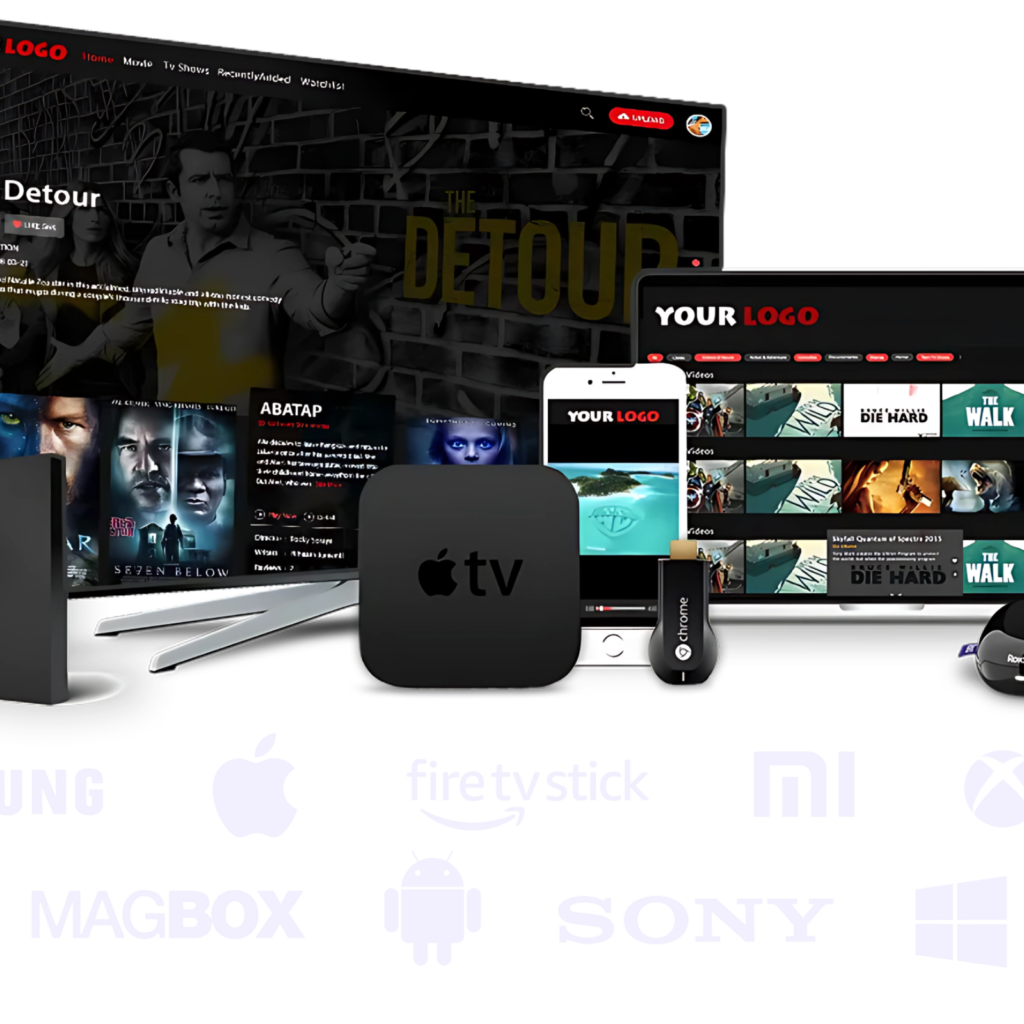
The Amazon Fire Stick is one of the most popular devices for watching IPTV in Switzerland — and for good reason. It's affordable, easy to use, plugs into any TV via HDMI, and supports all major IPTV apps. In this guide, we walk you through the complete step-by-step process to install IPTV on your Firestick in Switzerland — from unboxing to watching live TV in minutes.
This guide uses Streaming-Abo, Switzerland's leading IPTV provider, as the example subscription.
What You Need Before You Start
- ✅ Amazon Fire Stick (any model — Fire Stick Lite, Fire Stick 4K, Fire Stick 4K Max)
- ✅ A TV with an HDMI port
- ✅ Wi-Fi connection (minimum 10 Mbps for HD, 25 Mbps for 4K)
- ✅ An IPTV subscription — get yours at streamingabo.net
- ✅ Your IPTV login credentials (username, password, and M3U URL — provided by Streaming-Abo after subscribing)
Step 1 — Set Up Your Fire Stick
If your Fire Stick is already set up and connected to your TV and Wi-Fi, skip to Step 2.
- Plug your Fire Stick into your TV's HDMI port
- Connect the power cable to a USB port or wall adapter
- Switch your TV input to the correct HDMI source
- Follow the on-screen setup: connect to your Wi-Fi, sign in to your Amazon account
- Complete the initial setup and reach the Fire Stick home screen
Step 2 — Enable Apps from Unknown Sources
By default, the Fire Stick only allows apps from the Amazon App Store. To install IPTV apps, you need to enable installation from unknown sources. This is safe and standard practice for IPTV users.
- From the Fire Stick home screen, go to Settings (gear icon at the top right)
- Select My Fire TV
- Select Developer Options
- Turn on Apps from Unknown Sources
- Press Turn On to confirm
Note: On newer Fire Stick models, this option may be under Settings → My Fire TV → Install Unknown Apps.
Step 3 — Install the Downloader App
The Downloader app is a free tool available in the Amazon App Store that lets you download and install IPTV apps directly on your Fire Stick.
- From the Fire Stick home screen, press the Search icon (magnifying glass)
- Type Downloader and select it from the results
- Select the Downloader app by AFTVnews
- Click Download and wait for the installation to complete
- Open the Downloader app
- When prompted, allow Downloader to access storage — click Allow
Step 4 — Download and Install an IPTV Player App
There are several excellent IPTV player apps available for Fire Stick. We recommend IPTV Smarters Pro — it is user-friendly, stable, and fully compatible with Streaming-Abo.
Option A: Install IPTV Smarters Pro (Recommended)
- Open the Downloader app on your Fire Stick
- In the URL bar, type: https://www.iptvsmarters.com/smarters.apk
- Press Go and wait for the file to download
- When prompted, click Install
- Once installed, click Open to launch IPTV Smarters Pro
Option B: Install TiviMate (Alternative)
- Open the Downloader app
- Search for TiviMate in the Amazon App Store directly — it is available there
- Download and install it
- Open TiviMate once installation is complete
Step 5 — Add Your Streaming-Abo Subscription
Once your IPTV player app is installed, you need to enter your Streaming-Abo login credentials to access your channels.
In IPTV Smarters Pro:
- Open IPTV Smarters Pro
- Select Add User
- Choose Login with Xtream Codes API
- Enter the following details provided by Streaming-Abo:
- Username: your Streaming-Abo username
- Password: your Streaming-Abo password
- Server URL: provided in your welcome message from Streaming-Abo
- Click Add User
- Wait for the app to load your channel list — this may take 1–2 minutes on first load
Alternative: Using M3U URL
- Open your IPTV player app
- Select Add Playlist or Add M3U
- Enter the M3U URL provided by Streaming-Abo
- Give your playlist a name (e.g. "Streaming-Abo")
- Click Add and wait for channels to load
Don't have your credentials yet? Visit streamingabo.net and contact the team via WhatsApp to subscribe and receive your login details instantly.
Step 6 — Start Watching
Your channels are now loaded. Here's how to navigate:
- Live TV — browse all 25,000+ live channels organised by country and category
- Sports — find Blue Sport, DAZN, beIN Sports, Sky Sport and more under the Sports category
- Swiss channels — SRF 1, SRF 2, RTS 1, RSI La 1 are in the Switzerland section
- Movies & Series — access the VOD library with 150,000+ titles
- Search — use the search function to find a specific channel or show quickly
Recommended Fire Stick Models for IPTV in Switzerland
| Model | Max Resolution | Best For | Approx. Price |
|---|---|---|---|
| Fire Stick Lite | Full HD 1080p | Budget, HD TV | ~CHF 30 |
| Fire Stick (3rd Gen) | Full HD 1080p | Standard use | ~CHF 40 |
| Fire Stick 4K | 4K Ultra HD | 4K TV, sports | ~CHF 60 |
| Fire Stick 4K Max | 4K Ultra HD | Best performance, Wi-Fi 6 | ~CHF 75 |
Our recommendation: The Fire Stick 4K Max is the best option for IPTV in Switzerland. Its faster processor and Wi-Fi 6 support ensure smooth 4K streaming with no buffering, even during peak hours.
Troubleshooting Common Issues
Buffering or freezing during playback
- Switch from Wi-Fi to a wired ethernet connection using an ethernet adapter for Fire Stick
- Move your router closer to the Fire Stick or use a Wi-Fi extender
- Close other apps and devices using your internet connection
- Clear the app cache: Settings → Applications → IPTV Smarters → Clear Cache
Channels not loading
- Check your username, password, and server URL are entered correctly
- Try refreshing the playlist in the app settings
- Contact Streaming-Abo support via WhatsApp — the team responds 24/7
App not installing
- Make sure "Apps from Unknown Sources" is enabled (see Step 2)
- Check that you have enough storage on your Fire Stick — delete unused apps if needed
- Restart your Fire Stick and try again
Remote not responding in the app
- Use the Fire Stick navigation buttons — up/down/left/right and the centre select button
- Install the Amazon Fire TV app on your phone to use it as a touchscreen remote
Frequently Asked Questions
Can I install IPTV on any Fire Stick model?
Yes. IPTV Smarters Pro and TiviMate work on all Fire Stick models including Fire Stick Lite, Fire Stick 3rd Gen, Fire Stick 4K, and Fire Stick 4K Max.
Do I need an Amazon account to use IPTV on Fire Stick?
You need an Amazon account to set up the Fire Stick initially, but your IPTV subscription (Streaming-Abo) is completely separate and does not require an Amazon account.
Is it safe to enable Apps from Unknown Sources on my Fire Stick?
Yes, as long as you only download apps from trusted sources. IPTV Smarters Pro and TiviMate are well-known, widely used IPTV apps used by millions of viewers worldwide.
How do I get my Streaming-Abo login credentials?
Visit streamingabo.net, choose your plan, and contact the team via WhatsApp. Your username, password, and server URL are sent to you instantly after subscribing.
Can I use Streaming-Abo on multiple devices at the same time?
Yes. Streaming-Abo supports multi-screen connections. Contact the team to confirm how many simultaneous streams are included in your plan.
Conclusion
Installing IPTV on a Fire Stick in Switzerland takes less than 10 minutes from start to finish. Once set up, you have instant access to 25,000+ live channels in HD and 4K — Swiss TV, international content, live sport, movies, and series — all for as little as CHF 11.99/month.
If you haven't subscribed yet, start with a free 24-hour trial — no credit card needed.
👉 Get Your Free 24H Trial at Streaming-Abo
Last updated: June 2026 | Author: Streaming-Abo Editorial Team